An employee with permission to Send message has these possibilities:
- Send message
- Send batch messages
- Send message history
Follow these steps to send a single message:
- Select an organisation or sub-organisation
- Select Send message
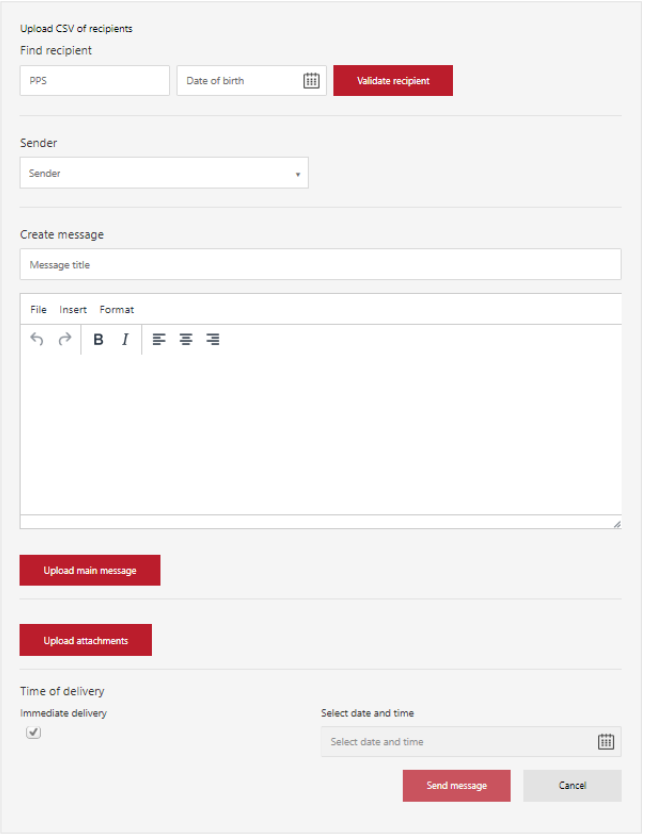
- On the Send message view, enter recipient's PPS and date of birth (mandatory).
- Click Validate recipient to check that recipient has agreed to receive messages and mail from the sender in question. The following text pops up: "You can send a message to recipient(s)" or "You can not send a message to recipient(s)".
- Select the correct Sender from the drop-down list.
- Enter a message title.
- Either write a main message via the editor or upload a main message - you cannot do both.
- [Optional] Upload any attachment - it is possible to name the attachment.
- Select time of delivery. Either immediately or at a specific date and time. The latter is practical if it is important to send a batch very early Monday morning - you can finish off your work Friday and know all messages are delivered when expected.
- Click Send message.
The message has now been send or are waiting for delivery, depending on your choice.